Sunday, February 28, 2016

how to play floating youtube videos in android


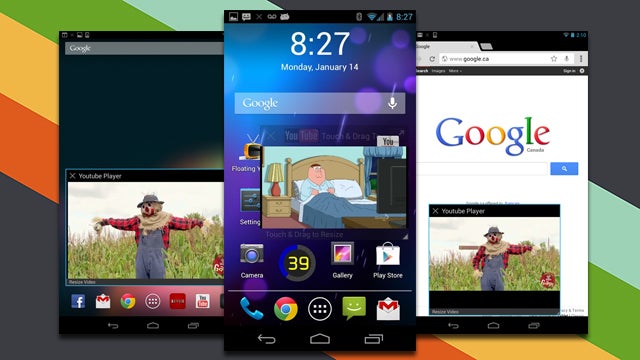
some android devices these days offers cool features that allows us to multitask. one such feature is to float videos so that we can browse or chat while watching. It doesn't matter whether the video is from youtube , any other online site or even a local file in your phone by using “Video Popup Player Floating”

Features of this app


+ Multiple video popups support – you can watch multiple videos at the same time.
+ Resize your floating video pop-up – Pinch and Zoom your popups to your desired size
+ Background playing support with audio – just listen to your videos in the background like a music video. Notifications tray support while in background. Minimize/maximize support.
+ Supports multiple instances of Notifications
+ Next / Previous Video, Shuffle, Volume/Mute support in your floating pop-up
+ Supports number of video media formats (720p, etc), codecs
+ Full screen video player mode is also available with Pinch and Zoom, Shuffle etc
+ Modern UI with Volume and Brightness control with upward / downward swipe on the video media.
+ Lockscreen support with play, pause, next support. Plays only Audio in lockscreen mode.
+ Custom settings as per your choice

Follow these steps


  •  Download and install an app called “Video Popup Player Floating”
  • After installing Viral Popup, you can either use it as a standalone app or use it alongside with your other apps.
  • Either way, the app will allow you to watch any YouTube video in a floating window.If you wish to use it as a standalone app, just launch it from your app drawer and then search for a video that you want to watch.
  • Tap the video to watch it. The way it works is very similar to the way that you watch videos through the official YouTube app.
  • To watch it in a floating or popup window, just tap the popup button on your video’s control bar.Now, if you wish to multitask, just click a YouTube video link from any app (ex. Facebook Messenger, Gmail, WeChat) and then select “Video Popup Player Floating” as your default action.
    • That’s it. You will be able to watch the video in a floating window. To close the video, just click the “X” button on its title bar. You can even use the pinch gesture to make the video smaller or larger.
    watch YouTube in a floating window Android c
    that's soo simple...

     Please do like, follow and comment
    [facebook src="trueandroidsolutions" width="1000"/]
  • Sunday, December 27, 2015

    Top 10 Best Antivirus Apps For Android Smartphones

    Anti-virus is one of the most important app that a smart phone these days should have although Android is getting secure with every new release, there is still a perception that Android is the ‘Windows of smartphones’. That means, like Windows for PCs, Android is prone to the various malwares and viruses. So, installing an antivirus app should be the right thing to do.

    These are the top 10 anti-virus for your smart phone ........
    http://beebom.com/2015/01/best-antivirus-android-apps


    Tuesday, July 7, 2015

    low ram is not the reason for low performance


    it's weird but true... 

    Nowadays everyone thinks that bigger ram means more performance but its not the truth 
    RAM known as Random Access Memory is just a work space for CPU to work.so bigger the ram means there is more work space for CPU to work but if the CPU is not so efficient in utilizing that work space or if it is engaged in some other activities a bigger ram is just useless 

    A real life comparison to understand this better

    Consider CPU as a kid who build things with building blocks (let building blocks be considers as data ) and ram be the room he is using . If the kid can move bricks quickly he can build thing quickly and if he is smart enough he can manage things that he made by only keeping thing that he needed in his room. Even if the room is big or small if one who build is smarter and faster he can manage it.

    Then why we need huge rams ?????

    yes, sometimes we need huge rams for playing huge games because the whole game can't fit into a small ram and also low ram decreases the performance of things like multi-window and huge software which need more space to work rather than speed of work

    what we understand

    Thus, we can say that CPU plays a big role in this if it is faster enough to manage ram you may not feel any performance issues.But do you know what makes your CPU slow over time ????    its apps that causes CPU lags because in android every app you install runs in background and uses ram , CPU power and eats your battery too

    how to solve this

    The best way to solve this is to unstall unnecessary apps ......OHHH!!!! that doesn't sound good

    Then there is another way , it is to hibernate apps(means force stopping apps until you open it)
    The app used to hibernate is greenify

    NOTE-installing apps like clean master, ram booster and etc is useless because they just clear your ram and after a some time, you can see your ram is almost full again

    about greenify

    This app helps you to hibernate (means force stop for ever until you open it) and it automatically hibernates after you exit app. Greenify works on both rooted and non rooted phones, but to unlock its full potential you should root it and install its donation pack. It can also save your battery a lot because there it reduces most of background apps
    Read this short beginners guide for rooting it is explained in the most simplest way
    Also see how to root by installing cwm in any samsung devices

    some other ways are


    2. Installing custom kernels (root needed)

    By using a custom kernel you can limit background process, increase battery and even increase CPU speed

    3. Flashing a custom rom

    Your stock ROM will be usually slower because it will be loaded with unuseful app and most of the phone don't get the latest updates so a custom ROM is one of the best ways
    see how to flash an android device

    4. Increasing internal memory (root needed)

    Apps like link 2 SD can be used to increase internal memory
    see how to do it by clicking here


    Please do like, follow and comment
    [facebook src="trueandroidsolutions" width="1000"/]

    Friday, July 3, 2015

    how to increase internal memory with link 2 sd


    Low internal memory


    You know internal memory is such a critical piece of your Android phone. All the applications are installed here. The users with top end phones have never confronted an issue with internal memory.But the users with low end phones regularly face this issue and can only keep just chosen applications on their phones as their internal memory is less. However, don't worry now, as true android solution is here for the salvage. In this post I will reveal to you how you could increase your internal memory by utilizing a memory card.

    partitioning memory card

    To utilize a memory card as an internal memory  you should first have an partitioned memory card. So there are various ways you could be partitioned your memory card. Here we will be using an application named as Link2SD. This application permits your phone to utilize a piece of the memory card as an internal memory and moves those applications on the memory card. We all know most recent Android version have the same usefulness, yet some files of those applications are still left on the internal memory. In any case, you can use Link2SD to build your internal memory of phone by no restrictions.For this you should require an SD card.

    There are 2 methods

    1.Using a windows PC

    • First install the mini Partition Wizard tool. here
    • put the card reader into the card reader and plug it into the computer.
    • Backup all the files on your memory card because you could lose all your data
    • Open the mini partition tool , and open the Memory Card in it.
    • Right click on it, and select move/resize option
      • Create an ext2/ext3/ext4 partition by selecting unallocated space ( use ext2 for stock ROM). your apps will be stored here
      • Then select “Create as:primary” 
      • Now click on the “Apply” button . now its all done with partitioning

    2.Using recovery in phone

    You can use custom recoveries like cwm and twrp to partition your memory card


  • Backup all your files on memory card.
  • Go into the recovery mode of your phone.
  • Select “Advanced”, and then choose “Partition SD Card”.
  • Then Choose your SD-ext size ( Like if you have a 2GB Memory Card, choose 512 MB, and if you have a 4 GB Memory card, you can choose 1024 MB).
  • Select 0 Swap.
  • wait for the process to finish, and then Reboot the phone. Now the partition is successfully made
  • Increase memory card by link 2 SD (root needed)


    • Download and install the Link2SD app. (note: install a genuine version of link 2 SD from play store and don't use cracked version because you may get "not mounting" errors)
    • Now open Link2SD. You will be asked to choose between ext2,ext3,ext4 and FAT32. Now select the correct partition(if you have done using recovery method use ext4)
    • Then  'Mount Script Created" message will be shown. Reboot your Phone now
    • Open Link2SD, if no error appears then it means its successful
    • Go to Link2SD > Setting> Check the autolink. (to automatically move apps after installation).
    • select “create link” to move already installed apps(  check mark the files: app, dalvic-cache, and library files).
    • To check storage info select “Storage Info”
    • And now its all done congrats......
    you can thank me in the form of your precious like , comments and shares :)
    [facebook src="trueandroidsolutions" width="1000"/]

    Wednesday, June 3, 2015

    how to install cwm or twrp recovery in any samsung smart phones


       Requirement :

    • ClockWorkMod recovery file or twrp          <links are given below>
    • Odin3
    • Charged Samsung galaxy Device
    • USB cable.
    • Windows PC
    Before Starting :
    • latest version of usb drivers 
    • ClockWorkMod recovery file or twrp
    • Odin3
    • stop antivirus and kikes
    Steps :
    1. Open Odin3 as administrator in your pc
    2. Click on PDA (or AP ) and navigate to recovery.tar file
    3. Make sure that re-partition is not selected and reboot too
    4. Put your device in download mode( in most phone press home key + vol down + power key until you see warning then press vol up)
    5. Connect your device to PC via USB cable and wait until you see a sign in ID:COM and Added in Odin3

    6. Click Start and wait few seconds.
    7. After Odin3 display PASS or RESET, unplug the USB cable
    8. Now cwm is successfully installed in your device

    Notes :
    • Backup your data
    • Flashing custom recovery will voids warranty
    • Do not disconnect the cable or turn off the device while flashing recovery file.
    • I am not responsible if something happened to your device .
    • Some devices have a locked bootloader, unlock it first before flashing the recovery file (ex : Verizon, AT&T).
    Downloads :
    • Odin3 v3.04 HERE, v3.07 HERE, v3.09 HERE 
    • Latest Samsung Mobile Driver HERE

    recovery for s duos series


    Touch ClockWorkMod for Samsung galaxy S3 SIII
    Touch ClockWorkMod for Samsung galaxy S4 SIV

    twrp for other devices

    cwm for other devices

    you can thank me in the form of your precious likes , shares and comments
    [facebook src="trueandroidsolutions" width="1000"/]

    Sunday, May 31, 2015

    How to flash an android phone

    what is flashing and why fashing ?

    Flashing is the process of changing your operating system , it is mainly done to get a new look for your smart phone. some old phone may not get new updates like lollipop , kitkat etc , so you can flash a custom rom (which is not official update given by your manufacturer) also custom rom offers high performance than stock rom which is loaded with many non useful stuffs. Some of best custom roms are cyanogen mod , omini rom and many more.....
    warning flashing and rooting voids warranty

    IT IS HIGHLY RECOMMENDED TO REED BEGINNER GUIDE FOR ROOTING AND FLASHING 

    how  to flash?

    method of flashing 

    you can flash rom using 2 method 

    1.recovery method (only .zip files)

    Its the simplest and fast method we just need to go to recovery and install zip from sd card.
    Every android phone has a inbuilt stock recovery which is not good enough to all the stuffs like flashing form recovery (ie .zip file installation)
    some of the best recoveries are cwm and twrp see how to install it 

    2.boot loader method(only .md5 files)

    Its the classic way , you need to connect phone to PC.  it takes time and you need software  to flash it (for samsung its odin ) or you can use ADB command line for any android device


    you can thank me in the form of your precious likes, shares and comments
    [facebook src="trueandroidsolutions" width="1000"/]

    Thursday, May 28, 2015

    Solve battery issues in any android

    Most common battery issues in android are


    1.Fast battery draining
    2.Sudden drop of battery percentage to zero


    Cause


    1.Fast battery draining

    This happens when you have installed many apps in your android device , even if you close it it will eat up your battery in background unknowingly

    2.Sudden drop of battery percentage to zero

    This mainly happens when you update your phone or flash with a new custom ROM. That is due to some errors in "batterystats.bin" file in the system storage

    solution

    It is recommended to check your battery if it is bulged or swollen , if it is then battery replacement would be the best option

    1.Fast battery draining

    As i said before apps in background eats up a lot of your battery , so in order to save battery we need to hibernate apps (hibernation means force stopping apps until you open it for next time and when you exit it force stops again). hibernating apps can save a lot of battery and it also decreases CPU load and ram usage which can make your phone run faster

    Install greenify (both for rooting and non rooted)

    This app helps you to hibernate (means force stop for ever until you open it) and it automatically hibernates after you exit app. Greenify works on both rooted and non rooted phones, but to unlock its full potential you should root it and install its donation pack. It can also increase your phones performance too
    Read this short beginners guide for rooting it is explained in the simplest way
    Also see how to root by installing cwm in any samsung devices

    2.Sudden drop of battery percentage to zero

    This problem can be solved by calibrating your battery. Calibration is the process that should be done every time after installing a new ROM. The calibration formats the 'batterystats.bin' file located in the /system storage and removes all the old files . After time ,your system will generate a new file with new values. This significantly helps with battery problems. the battery calibration could be done anytime, it is recommended to calibrate your battery from time to time

    how to calibrate battery?


    1.using a calibrator app
    This is the simplest way to calibrate your battery , as it is a one click calibration. it is recommended to calibrate when 100% battery is reached. Further details will be provided in app

    2.Manual calibration(only for samsung)
    For this there is no need an app

    steps
    1.Fully charge your battery 
    2.now type *#0228# in your dialer
    3.click quick start option  in the menu
    4.now the phone screen goes black for a few seconds
    5.now you can see some battery % is dropped
    6.charge your battery again to 100%
    7.now again type *#0228# in your dialer
    8.again some battery % may drops
    9.repeat this steps until battery % remains 100%
    10.Congrats now the problem is fixed

    you can thank me in the form of your precious likes , comments and shares....
    [facebook src="trueandroidsolutions" width="1000"/]